We use cookies for ads and analytics to support our work. You can accept or reject these non-essential cookies. Cookie policy.
Harden your home Wi-Fi in about 20 minutes: change admin logins, enable WPA3, kill WPS, update firmware, and segment IoT devices.
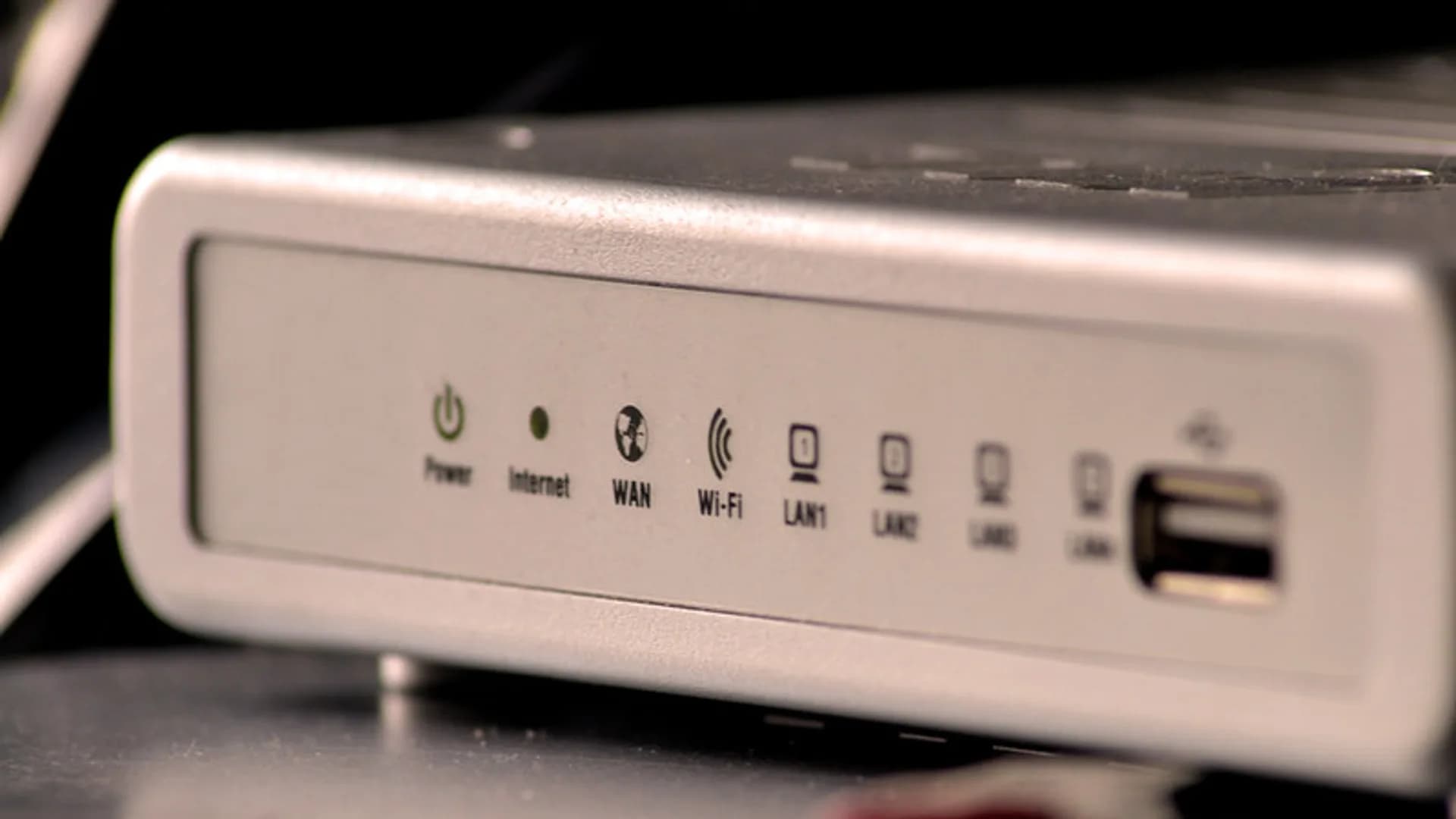
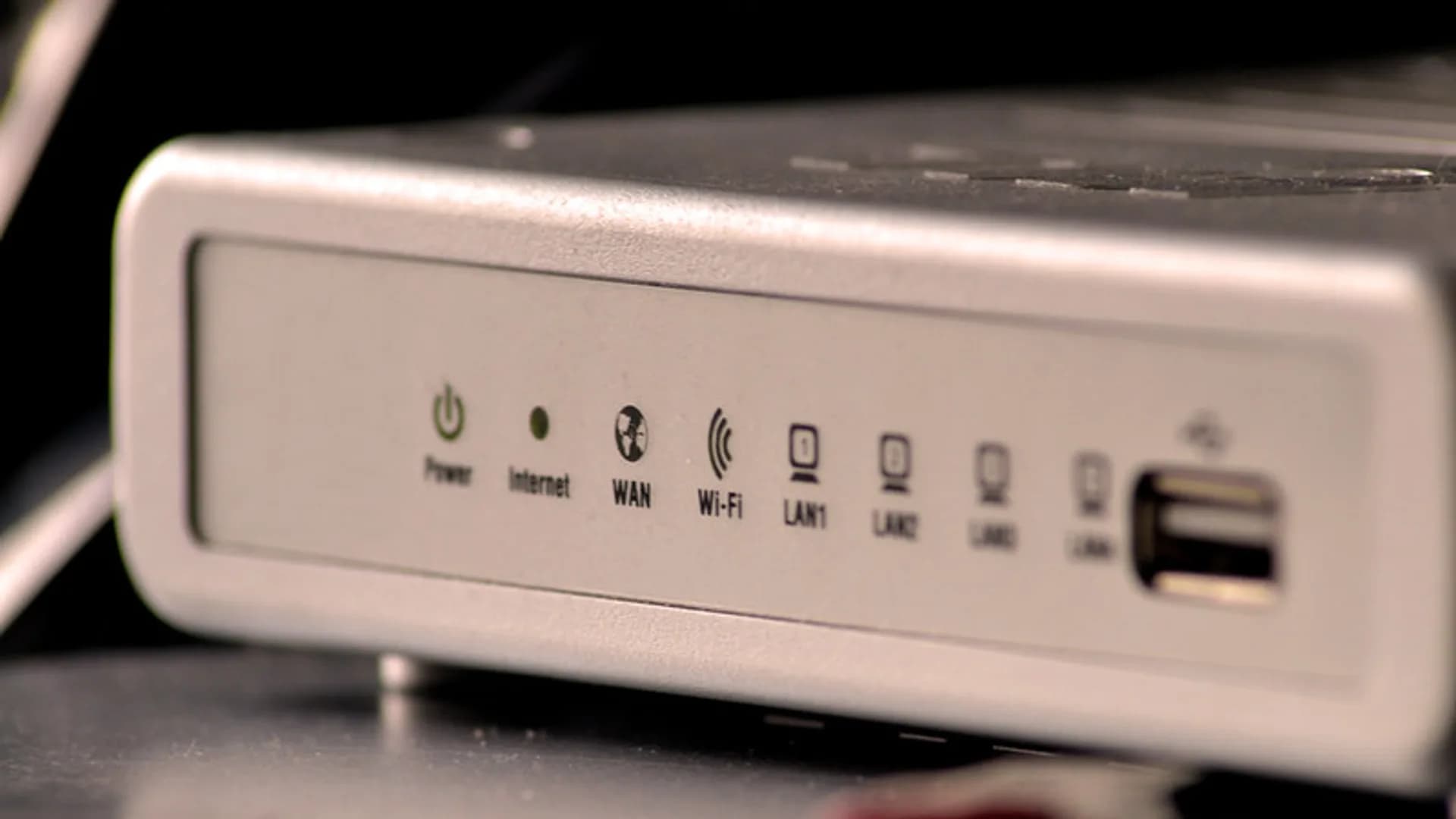
Your router is the front door to every device you own, yet most ship with weak defaults that anyone nearby can exploit. These ten practical steps harden your home Wi-Fi without special hardware or a networking degree.
Open a browser and type your router's gateway address — usually 192.168.0.1 or 192.168.1.1, printed on a sticker underneath the unit. The single most important change here is the admin password that protects these settings, which is completely separate from your Wi-Fi password.
Encryption is what stops a neighbor or a parked car from reading your traffic. In 2026, WPA3 is the standard to choose. If some older devices refuse to connect, use the WPA2/WPA3 "mixed" or "transition" mode rather than dropping to WPA2 alone. Never use WEP or the original WPA — both are cracked in minutes.
| Standard | Status | Use it? |
|---|---|---|
| WPA3 | Current, strongest | Yes |
| WPA2/WPA3 mixed | Broad compatibility | Yes, for older devices |
| WPA2 (AES) | Aging but acceptable | Only if no WPA3 |
| WEP / WPA / TKIP | Broken | Never |
Make your Wi-Fi passphrase at least 16 characters. A memorable string of unrelated words beats a short, complex one, and it's far easier to type onto a TV remote. Avoid your address, surname, or phone number.
Several convenience features quietly widen your exposure. Turn the risky ones off:
A flat network lets one hacked device reach all the others. Segmentation contains the damage if something goes wrong.
Reboot the router to apply your changes, then reconnect each device with the new passphrase. Schedule a quick check every few months: review the list of connected devices, remove anything you don't recognize, and re-confirm the firmware is current. Security is a habit, not a one-time switch.
Browse to your router's gateway address (commonly 192.168.0.1 or 192.168.1.1, shown on the sticker underneath) and sign in. Immediately replace the default admin username and password with a long, unique passphrase.
While you're here, disable remote management so nobody can reach the settings page from the internet.
Open the firmware or system-update section and install the newest version. Outdated firmware is the most common way home routers get hijacked.
If your router offers automatic updates, turn them on so future patches install themselves.
In the wireless security settings, choose WPA3. If older devices can't connect, select WPA2/WPA3 "mixed" or "transition" mode rather than dropping to WPA2 alone.
Never use WEP, WPA, or TKIP — they can be cracked within minutes.
Create a Wi-Fi password of at least 16 characters; a string of unrelated words is both strong and easy to type. Keep it different from the admin password.
Rename your SSID to something neutral that doesn't reveal your name, unit number, or router model.
Turn off WPS, whose 8-digit PIN can be brute-forced, and pair devices manually instead. Disable UPnP unless a specific device needs it, since it can open ports automatically.
Double-check that remote or WAN-side administration is switched off.
Enable the guest network so visitors' phones never touch your main devices or admin panel. Give it its own password.
Move smart-home gadgets — cameras, plugs, speakers, TVs — onto the guest or a dedicated IoT SSID, since they're rarely patched and make easy entry points.
Verify the built-in firewall (SPI/NAT) is enabled, then reboot the router to apply every change.
Reconnect your devices with the new passphrase, and set a reminder to review connected devices and firmware every few months.
Yes. WPA3 protects against the offline password-guessing attacks that WPA2 is vulnerable to and encrypts each session individually. If a few old devices can't connect, use WPA2/WPA3 mixed mode instead of disabling WPA3.
Not really. A hidden SSID is still easy to detect with free tools, and it can make your own devices connect less reliably. A strong WPA3 passphrase does far more to protect you.
WPS uses an 8-digit PIN that can be brute-forced because the router validates each half separately, so the real strength is only four digits. Disable it and connect devices with the password manually.
The Wi-Fi password lets devices join the network, while the admin password protects the router's settings page. They should be different, and the admin one is the one attackers use to take over your router.
Ideally yes. Cameras, plugs, and other IoT gadgets are often poorly updated, so putting them on a guest or dedicated IoT network keeps a compromised device from reaching your phone or laptop.
Enable automatic updates if your router offers them; otherwise check every couple of months. Firmware patches fix the security holes attackers rely on, so an out-of-date router is one of the easiest targets.
Share quick feedback - it's anonymous and separate from comments.

Comments
No comments yet - be the first to share your thoughts.
Leave a comment