We use cookies for ads and analytics to support our work. You can accept or reject these non-essential cookies. Cookie policy.
Wi-Fi dropping out? Work through this proven diagnostic ladder, from a router restart to channel changes, firmware, DNS, and when to call your ISP.
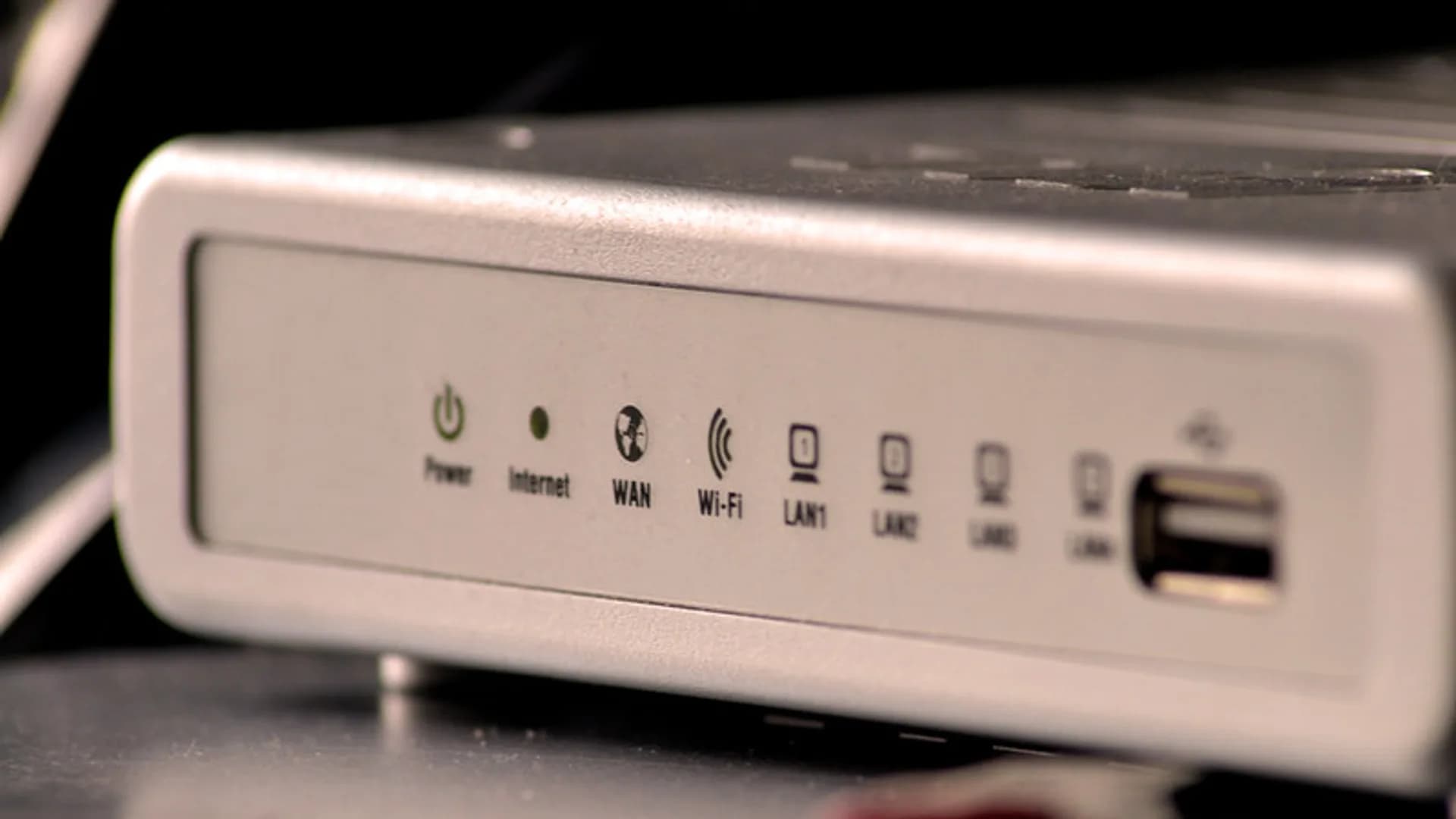
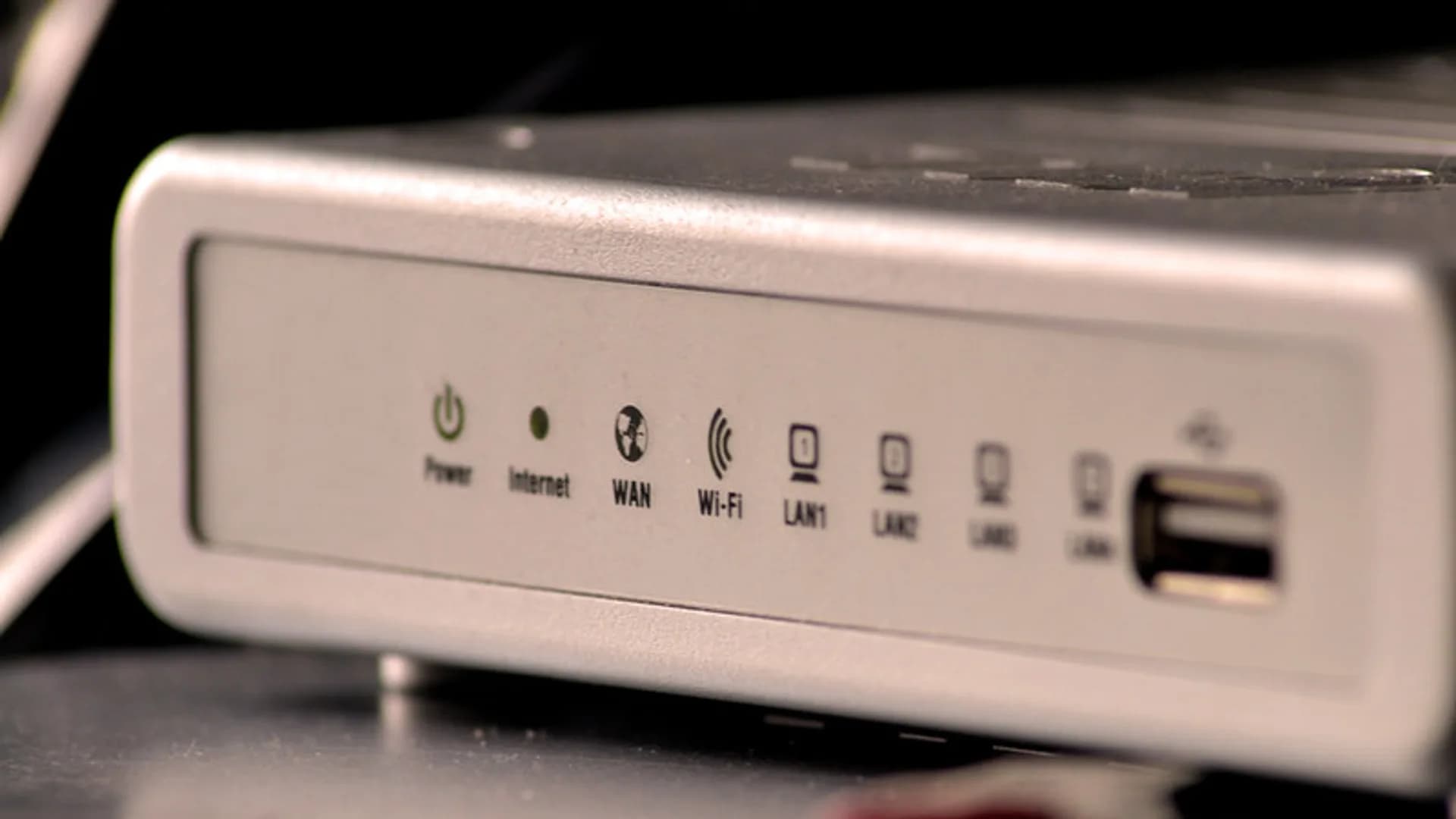
A Wi-Fi connection that drops every few minutes is one of the most frustrating home-network problems because the cause can sit anywhere between your device and your ISP. The fastest way to fix it is a diagnostic ladder: start with the cheapest, most common fixes and only escalate if the problem survives.
Most intermittent drops are cleared by a clean power cycle, and the pattern you see afterward tells you where to look next.
Weak or noisy signal is the second most common cause of repeated drops. Walls, floors, microwaves, and metal appliances all degrade Wi-Fi.
In flats and dense neighbourhoods, dozens of networks fight over the same airwaves. Switching channels often ends drops instantly.
| Band | Best for | Trade-off |
|---|---|---|
| 2.4 GHz | Range, walls, IoT devices | Crowded, slower, more interference |
| 5 GHz | Speed in the same room | Shorter range through walls |
| 6 GHz (Wi-Fi 6E/7) | Clean, fast, modern devices | Very short range, newest gear only |
In the router admin page, set 2.4 GHz to channel 1, 6, or 11, switch 5 GHz off DFS channels if drops coincide with nearby radar, and give the two bands different names so you can pin a device to the better one.
Outdated software causes a surprising share of stability bugs. Treat the router and the device separately.
A corrupted saved profile makes one device drop while others stay online. Rebuilding it clears bad credentials and cached settings.
If drops affect every device, recur at fixed times, or persist after the steps above, the fault is likely upstream. Call your provider when you see the modem's online light blinking, when a line test shows errors, or when neighbours on the same provider report outages. Ask them to check signal levels and line noise, and request a modem swap if your unit is several years old.
Unplug both the modem and router, wait 30 seconds, then plug the modem in first and let it fully sync before powering the router. This clears stale memory and DHCP leases that cause intermittent drops.
Watch whether the problem affects every device or just one, this tells you where to look next.
Move next to the router and see if the drops stop. If they do, it is a coverage problem.
Log into the router admin page and set the 2.4 GHz radio to channel 1, 6, or 11 to dodge interference from neighbouring networks.
Give the 2.4 GHz and 5 GHz bands separate names so you can pin each device to the band that performs best for its distance from the router.
In the router admin panel, install any pending firmware update and reboot. Outdated firmware is a common source of stability bugs.
On the affected device, update the wireless adapter driver (Windows Device Manager or the maker's site) and install any pending OS updates.
In your device's Wi-Fi settings, choose Forget for the network, restart the device, then reconnect by typing the password fresh. This rebuilds a corrupted saved profile.
If needed, renew the address with ipconfig /release then ipconfig /renew on Windows, or Renew DHCP Lease on macOS.
If the Wi-Fi icon stays connected but pages fail to load, set DNS to a public resolver such as 1.1.1.1 or 8.8.8.8.
If every device still drops, the outages recur at fixed times, or the modem light blinks during drops, call your ISP to check line levels and request a modem swap if yours is old.
When a single device drops while others stay online, the issue is local to that device. Update its wireless drivers or OS, forget and rejoin the network, and check that it is not roaming to a weaker band or distant access point.
Yes, in crowded areas it often does. Overlapping networks on the same channel cause interference and disconnects. Setting 2.4 GHz to channel 1, 6, or 11 and using a less congested 5 GHz channel can resolve repeated drops immediately.
Use 5 GHz when you are close to the router for speed and a cleaner signal, and 2.4 GHz when you need range through walls. If a device sits at the edge of coverage, locking it to 2.4 GHz usually gives a more stable connection.
You should not need to restart it daily. If a weekly or daily reboot is the only thing keeping you online, that points to overheating, failing hardware, or firmware bugs, so update the firmware and consider replacing an old router.
Changing DNS will not fix a true radio disconnect, but it helps when the Wi-Fi icon stays connected while pages fail to load. A fast public resolver like 1.1.1.1 or 8.8.8.8 can cure that specific stalling problem.
If every device drops at the same time, the outages happen at regular intervals, or the modem's online light blinks during drops, the fault is likely upstream. Run a line test or call your ISP to check signal levels and line noise.
Share quick feedback - it's anonymous and separate from comments.

Comments
No comments yet - be the first to share your thoughts.
Leave a comment